Sec3&4. File System
Windows OS uses NTFS (New technology file system) to structure data in the drive:
- NTFS is reliable and can restore the consistency of the file system in the event of a system failure or power loss.
- Provides security by allowing us to set granular permissions on both files and folders.
- Supports very large-sized partitions.
- Has journaling built-in, meaning that file modifications (addition, modification, deletion) are logged.
Permissions:
The NTFS file system has many basic and advanced permissions. Some of the key permission types are:
| Permission Type | Description |
|---|---|
| Full Control | Allows reading, writing, changing, deleting of files/folders. |
| Modify | Allows reading, writing, and deleting of files/folders. |
| List Folder Contents | Allows for viewing and listing folders and subfolders as well as executing files. Folders only inherit this permission. |
| Read and Execute | Allows for viewing and listing files and subfolders as well as executing files. Files and folders inherit this permission. |
| Write | Allows for adding files to folders and subfolders and writing to a file. |
| Read | Allows for viewing and listing of folders and subfolders and viewing a file's contents. |
| Traverse Folder | This allows or denies the ability to move through folders to reach other files or folders. For example, a user may not have permission to list the directory contents or view files in the documents or web apps directory in this example c:\users\bsmith\documents\webapps\backups\backup_02042020.zip but with Traverse Folder permissions applied, they can access the backup archive. |
Files and folders inherit the NTFS permissions of their parent folder for ease of administration, so administrators do not need to explicitly set permissions for each file and folder, as this would be extremely time-consuming. If permissions do need to be set explicitly, an administrator can disable permissions inheritance for the necessary files and folders and then set the permissions directly on each.
Integrity Control Access Control List (icacls)
we can also achieve a fine level of granularity over NTFS file permissions in Windows from the command line using the icacls utility.
- run
icacls - run
icacls C:\Windows
C:\htb> icacls c:\windows
c:\windows NT SERVICE\TrustedInstaller:(F)
           NT SERVICE\TrustedInstaller:(CI)(IO)(F)
           NT AUTHORITY\SYSTEM:(M)
           NT AUTHORITY\SYSTEM:(OI)(CI)(IO)(F)
           BUILTIN\Administrators:(M)
           BUILTIN\Administrators:(OI)(CI)(IO)(F)
           BUILTIN\Users:(RX)
           BUILTIN\Users:(OI)(CI)(IO)(GR,GE)
           CREATOR OWNER:(OI)(CI)(IO)(F)
           APPLICATION PACKAGE AUTHORITY\ALL APPLICATION PACKAGES:(RX)
           APPLICATION PACKAGE AUTHORITY\ALL APPLICATION PACKAGES:(OI)(CI)(IO)(GR,GE)
           APPLICATION PACKAGE AUTHORITY\ALL RESTRICTED APPLICATION PACKAGES:(RX)
           APPLICATION PACKAGE AUTHORITY\ALL RESTRICTED APPLICATION PACKAGES:(OI)(CI)(IO)(GR,GE)

Successfully processed 1 files; Failed processing 0 files
The possible inheritance settings are:
(CI): container inherit(OI): object inherit(IO): inherit only(NP): do not propagate inherit(I): permission inherited from parent container
Basic access permissions are as follows:
F: full accessD: delete accessN: no accessM: modify accessRX: read and execute accessR: read-only accessW: write-only access
Add or remove permissions:
/grant user:permission
C:\htb> icacls c:\users /grant joe:f
processed file: c:\users
Successfully processed 1 files; Failed processing 0 files
Using the command icacls c:\users /grant joe:f the joe user has full control over the directory, but given that (oi) and (ci) were not included in the command, the joe user will only have rights over the c:\users folder but not over the user subdirectories and files contained within them.
1. Grant Full Control to a Local User Grants bob.smith full access to the C:\Data folder:
icacls C:\Data /grant bob.smith:F
2. Grant Permissions Recursively
icacls C:\Projects /grant bob.smith:RX /t
3. Replace Existing Permissions Use /grant:r to replace any existing explicit permissions for that user with the new ones (instead of adding to them):
icacls C:\Secret /grant:r bob.smith:R
Advanced: Inheritance Flags
When granting permissions on folders, you can specify how permissions apply to files and subfolders using flags before the permission code:
(OI): Object Inherit (files inherit this permission)(CI): Container Inherit (subfolders inherit this permission)
icacls C:\Shared /grant bob.smith:(OI)(CI)F
/deny user:permission
- To remove granted permissions
icacls c:\users /remove:g bob.smith
- To remove denied permissions:
icacls c:\users /remove:d bob.smith
- To remove all permissions (both granted and denied) for the user:
icacls c:\users /remove bob.smith
Key Details:
- /remove:g specifically targets and removes rights that were (G)ranted.
- /remove:d specifically targets and removes rights that were (D)enied.
- If the user has bot granted and denied entries, using
/remove:gwill leave the denied entries intact, and vice versa. Using/removewithout a suffix removes all occurrences of the user from the ACL.
NTFS vs. Share Permissions
The idea that any OS is immune to malware is a technical fallacy.
The Server Message Block protocol (SMB) is used in Windows to connect shared resources like files and printers.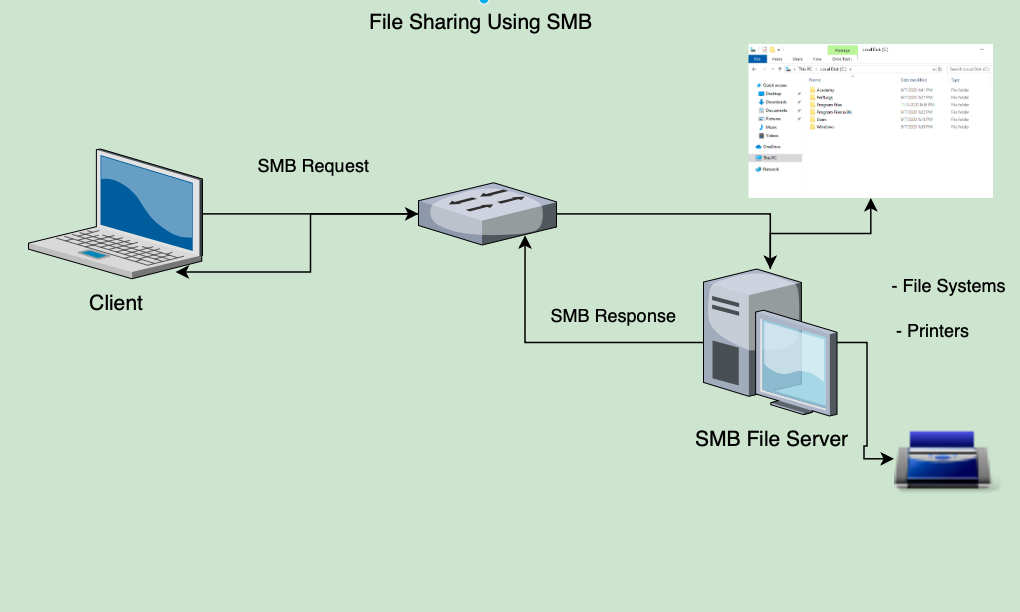
NTFS permissions and share permissions are often understood to be the same.
They are not the same but often apply to the same shared resource.
Share permissions
| Permission | Description |
|---|---|
Full Control |
Users are permitted to perform all actions given by Change and Read permissions as well as change permissions for NTFS files and subfolders |
Change |
Users are permitted to read, edit, delete and add files and subfolders |
Read |
Users are allowed to view file & subfolder contents |
NTFS Basic permissions
| Permission | Description |
|---|---|
Full Control |
Users are permitted to add, edit, move, delete files & folders as well as change NTFS permissions that apply to all allowed folders |
Modify |
Users are permitted or denied permissions to view and modify files and folders. This includes adding or deleting files |
Read & Execute |
Users are permitted or denied permissions to read the contents of files and execute programs |
List folder contents |
Users are permitted or denied permissions to view a listing of files and subfolders |
Read |
Users are permitted or denied permissions to read the contents of files |
Write |
Users are permitted or denied permissions to write changes to a file and add new files to a folder |
Special Permissions |
A variety of advanced permissions options |
NTFS special permissions
| Permission | Description |
|---|---|
Full control |
Users are permitted or denied permissions to add, edit, move, delete files & folders as well as change NTFS permissions that apply to all permitted folders |
Traverse folder / execute file |
Users are permitted or denied permissions to access a subfolder within a directory structure even if the user is denied access to contents at the parent folder level. Users may also be permitted or denied permissions to execute programs |
List folder/read data |
Users are permitted or denied permissions to view files and folders contained in the parent folder. Users can also be permitted to open and view files |
Read attributes |
Users are permitted or denied permissions to view basic attributes of a file or folder. Examples of basic attributes: system, archive, read-only, and hidden |
Read extended attributes |
Users are permitted or denied permissions to view extended attributes of a file or folder. Attributes differ depending on the program |
Create files/write data |
Users are permitted or denied permissions to create files within a folder and make changes to a file |
Create folders/append data |
Users are permitted or denied permissions to create subfolders within a folder. Data can be added to files but pre-existing content cannot be overwritten |
Write attributes |
Users are permitted or denied to change file attributes. This permission does not grant access to creating files or folders |
Write extended attributes |
Users are permitted or denied permissions to change extended attributes on a file or folder. Attributes differ depending on the program |
Delete subfolders and files |
Users are permitted or denied permissions to delete subfolders and files. Parent folders will not be deleted |
Delete |
Users are permitted or denied permissions to delete parent folders, subfolders and files. |
Read permissions |
Users are permitted or denied permissions to read permissions of a folder |
Change permissions |
Users are permitted or denied permissions to change permissions of a file or folder |
Take ownership |
Users are permitted or denied permission to take ownership of a file or folder. The owner of a file has full permissions to change any permissions |
Keep in mind that NTFS permissions apply to the system where the folder and files are hosted. Folders created in NTFS inherit permissions from parent folders by default.
The share permissions apply when the folder is being accessed through SMB, typically from a different system over the network. This means someone logged in locally to the machine or via RDP can access the shared folder and files by simply navigating to the location on the file system and only need to consider NTFS permissions.
Creating a Network Share
#IMPO-networkSHare
Most large enterprise environments, shares are created on a Storage Area Network (SAN), Network Attached Storage device (NAS), or a separate partition on drives accessed via a server operating system like Windows Server. If we ever come across shares on a desktop operating system, it will either be a small business or it could be a beachhead system used by a penetration tester or malicious attacker to gather and exfiltrate data.
In a real-world environment it is a good practice for administrators to set this number according to the number of users that regularly need access to the resource being shared.
In this case, the Pwnbox is our client, and the Windows 10 target box is our server.
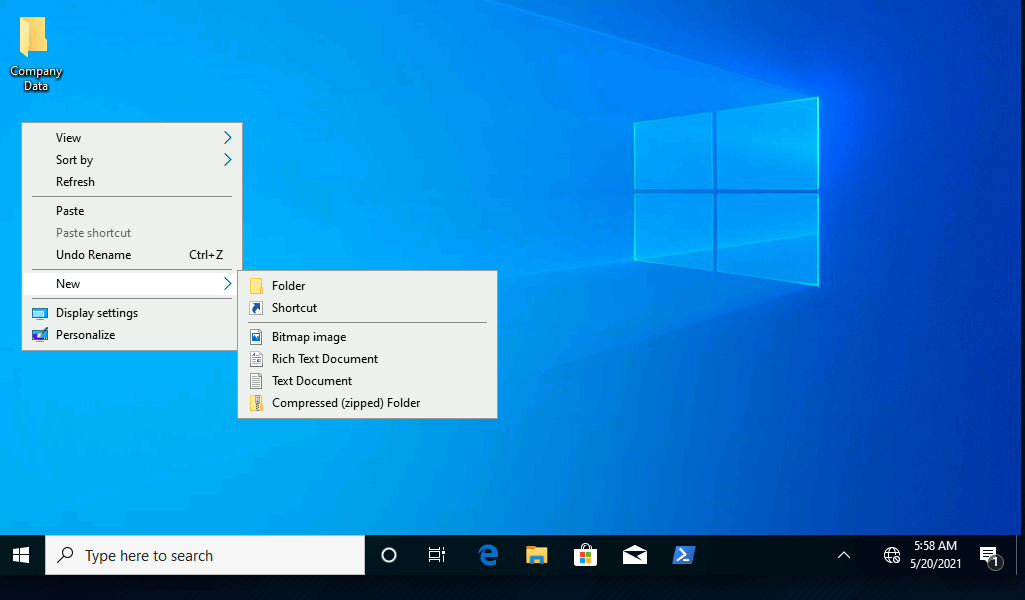
In properties, there is the Sharing --> Advance sharing option
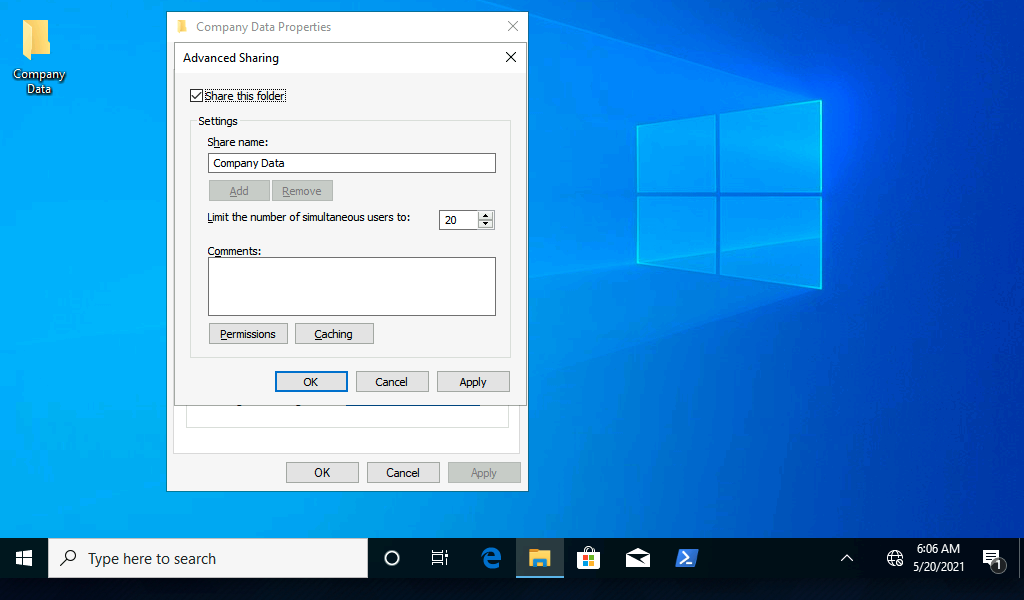
- Share number limited to 20 people
(In a real-world environment it is a good practice for administrators to set this number according to the number of users that regularly need access to the resource being shared.)
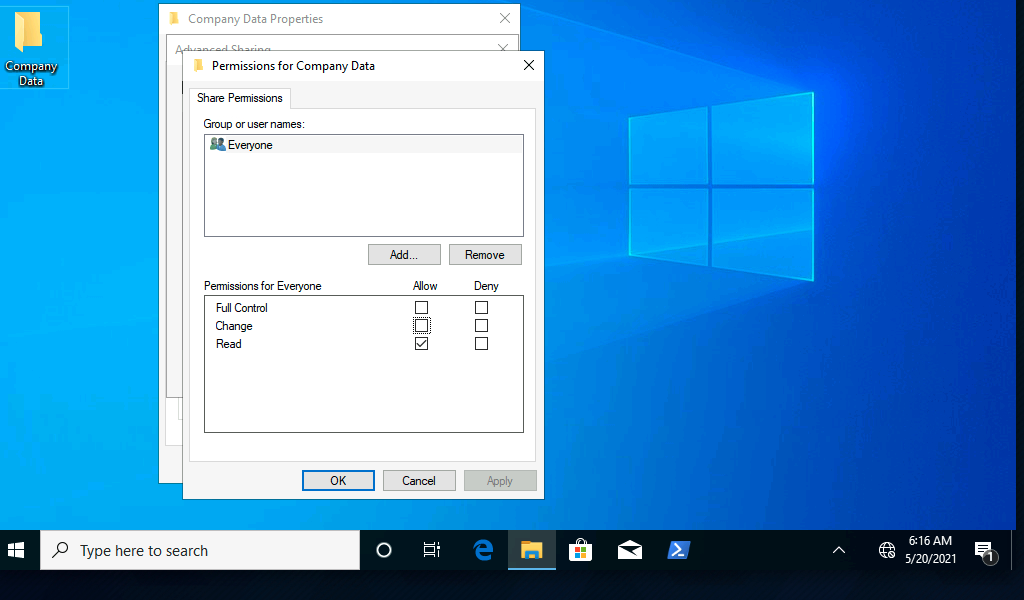
- there is an
access control list(ACL) for shared resources. - We can consider this the SMB permissions list.
- Keep in mind that with shared resources, both the SMB and NTFS permissions lists apply to every resource that gets shared in Windows.
- The ACL contains
access control entries(ACEs). - Typically these ACEs are made up of
users&groups(also called security principals) as they are a suitable mechanism for managing and tracking access to shared resources.
Using smbclient to list available shares
#IMPO-smb Note that Windows Firewall can block access to the SMB server, check settings first/.