Docker, LXC
Containerization is the process of packaging and running applications in isolated environments, typically referred to as containers.
Technologies like Docker, Docker Compose, and Linux Containers (LXC) make containerization possible, primarily in Linux-based systems.
Difference between VM and containers?
Containers differ from virtual machines in that they share the host system's kernel.
But from a security perspective VM is more secure than containers as it provides full isolation. (vulnerabilities such as privilege escalation or container escapes can happen.)
Analogy
Imagine organizing a big concert, and each band needs their own customized stage setup. Instead of building a completely new stage for each band (which would be like using a virtual machine), you create portable, self-contained "stage pods" that include everything the band needs lights, instruments, speakers, etc. These pods are lightweight, reusable, and can be easily moved from venue to venue. The key is that the pods all work seamlessly on the same main stage (the host system), but each one is isolated enough that no band's setup interferes with the others.
Containers package an application with all its required tools and settings, allowing it to run consistently across different systems without conflict, all while sharing the same "main stage" (the underlying system's resources).
Docker
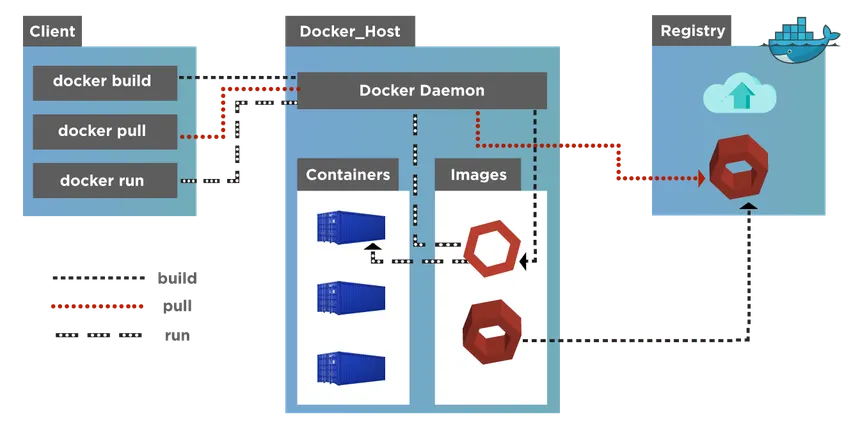
Docker is an open-source platform for automating the deployment of applications as self-contained units called containers. Docker emphasizes packaging applications with all their dependencies in a portable "image", allowing them to be easily deployed across different environments.
Analogy
Imagine Docker containers as a sealed lunchbox. You can eat the food (run applications) inside, but once you close the box (stop the container), everything resets. To make a new lunchbox (new container) with updated contents (modified configurations), you create a new recipe (Dockerfile) based on the original. When serving multiple lunchboxes in a restaurant (production), you'd use a kitchen system (Kubernetes/Docker Compose) to manage all the orders smoothly.
Install Docker-Engine
#!/bin/bash
# Preparation
sudo apt update -y sudo
apt install ca-certificates curl gnupg lsb-release -y sudo mkdir -m 0755 -p /etc/apt/keyrings
curl -fsSL https://download.docker.com/linux/ubuntu/gpg | sudo gpg --dearmor -o /etc/apt/keyrings/docker.gpg echo "deb [arch=$(dpkg --print-architecture) signed-by=/etc/apt/keyrings/docker.gpg] https://download.docker.com/linux/ubuntu $(lsb_release -cs) stable" | sudo tee /etc/apt/sources.list.d/docker.list > /dev/null

# Install Docker Engine
sudo apt update -y
sudo apt install docker-ce docker-ce-cli containerd.io docker-buildx-plugin docker-compose-plugin -y

# Add user htb-student to the Docker group
sudo usermod -aG docker htb-student
echo '[!] You need to log out and log back in for the group changes to take effect.'

# Test Docker installation
docker run hello-world
The Docker engine and specific Docker images are needed to run a container. These can be obtained from the Docker Hub, a repository of pre-made images, or created by the user.
it is divided into a public and a private area. The public area allows users to upload and share images with the community.
Creating a Docker image is done by creating a Dockerfile, which contains all the instructions the Docker engine needs to create the container.
We can use Docker containers as our “file hosting” server when transferring specific files to our target systems. Therefore, we must create a Dockerfile based on Ubuntu 22.04 with Apache and SSH server running. With this, we can use scp to transfer files to the docker image, and Apache allows us to host files and use tools like curl, wget, and others on the target system to download the required files. Such a Dockerfile could look like the following:
Dockerfile
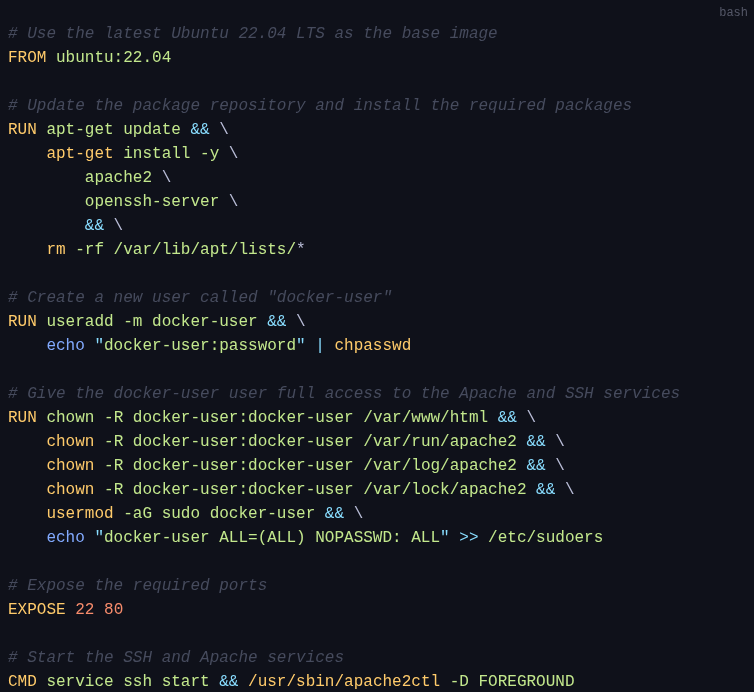
After we have defined our Dockerfile, we need to convert it into an image.
With the build command, we take the directory with the Dockerfile, execute the steps from the Dockerfile, and store the image in our local Docker Engine. If one of the steps fails due to an error, the container creation will be aborted. With the option -t, we give our container a tag, so it is easier to identify and work with later.
Docker build
sosoBoy@htb[/htb]$ docker build -t FS_docker .
these images are read-only templates and provide the file system necessary for runtime and all parameters
We can start the container by the following command [docker run]:
docker run -p 8022:22 -p 8080:80 -d FS_docker
this start a new container from the image FS_docker and map the host ports 8022 and 8080 to container ports 22 and 80, respectively. The container runs in the background, allowing us to access the SSH and HTTP services inside the container using the specified host ports.
Some of the most commonly used Docker management commands are:
| Command | Description |
|---|---|
docker ps | List all running containers |
docker stop | Stop a running container. |
docker start | Start a stopped container. |
docker restart | Restart a running container. |
docker rm | Remove a container. |
docker rmi | Remove a Docker image. |
docker logs | View the logs of a container. |
| Impo. | |
When working with Docker images, it's crucial to understand that any changes made to a running container based on an image are not automatically saved to the image. To preserve these changes, you need to create a new image that includes them. This is done by writing a new Dockerfile, which starts with the FROM statement (specifying the base image) and then includes the necessary commands to apply the changes. Once the Dockerfile is ready, you can use the docker build command to build the new image and assign it a unique tag to identify it. |
Docker is stateless by design, which means any change made inside a container will be loss when it is stopped or removed. This process ensures that the original image remains unchanged, while the new image reflects the changes.
Linux Containers (LXC)
Containers offer an isolated environment, allowing the software to run consistently across any Linux machine, regardless of the host system’s configuration. #virtualization
LXC provides a comprehensive set of tools and APIs for managing and configuring containers, making it a popular choice for containerization on Linux systems.
Linux Containers (LXC) is a lightweight virtualization technology that allows multiple isolated Linux systems (called containers) to run on a single host.
LXC uses key resource isolation features, such as control groups (cgroups) and namespaces, to ensure that each container operates independently.
In LXC, images are manually built by creating a root filesystem and installing the necessary packages and configurations. Those containers are tied to the host system, may not be easily portable, and may require more technical expertise to configure and manage.
Install LXC
sudo apt install lxc -y
It is worth noting that LXC requires the Linux kernel to support the necessary features for containerization. (Rpi-5 does not have it...)
create container
For example, to create a new Ubuntu container named linuxcontainer :
sudo lxc-create -n linuxcontainer -t ubuntu
manage containers
| Command | Description |
|---|---|
lxc-ls | List all existing containers |
lxc-stop -n <container> | Stop a running container. |
lxc-start -n <container> | Start a stopped container. |
lxc-restart -n <container> | Restart a running container. |
lxc-config -n <container name> -s storage | Manage container storage |
lxc-config -n <container name> -s network | Manage container network settings |
lxc-config -n <container name> -s security | Manage container security settings |
lxc-attach -n <container> | Connect to a container. |
lxc-attach -n <container> -f /path/to/share | Connect to a container and share a specific directory or file. |
As penetration testers, we often face situations where we need to test software or systems that have complex dependencies or configurations that are difficult to replicate on our local machines. This is where Linux containers become extremely useful. A Linux container is a lightweight, standalone package that includes everything needed to run a specific piece of software such as the code, libraries, and configuration files. Containers offer an isolated environment, allowing the software to run consistently across any Linux machine, regardless of the host system’s configuration.
However, it is important to configure LXC container security to prevent unauthorized access or malicious activities inside the container. This can be achieved by implementing several security measures, such as:
- Restricting access to the container
- Limiting resources
- Isolating the container from the host
- Enforcing mandatory access control
- Keeping the container up to date
Securing LXC
- For example, we can disable SSH access to the container by removing the
openssh-serverpackage or by configuring SSH only to allow access from trusted IP addresses. (The containers share the same kernel resources as the host) - we can use
cgroupsto limit the amount of CPU, memory, or disk space that a container can use.
In order to configure cgroups for LXC and limit the CPU and memory, a container can create a new configuration file in the /usr/share/lxc/config/<container name>.conf directory with the name of our container. For example, to create a configuration file for a container named linuxcontainer, we can use the following command:
sosoBoy@htb[/htb]$ sudo vim /usr/share/lxc/config/linuxcontainer.conf
and limit resource usage:
lxc.cgroup.cpu.shares = 512 lxc.cgroup.memory.limit_in_bytes = 512M
The lxc.cgroup.cpu.shares parameter determines the CPU time a container can use in relation to the other containers on the system. (In this case 512 M in ram)
The lxc.cgroup.memory.limit_in_bytes parameter allows to set the maximum amount of memory a container can use. (in bytes, kilobytes (K), megabytes (M), gigabytes (G), or terabytes (T))
To apply the changes. restart the LXC service:
sudo systemctl restart lxc.service
LXC use namespaces to provide an isolated environment for processes, networks, and file systems from the host system. Namespaces are a feature of the Linux kernel that allows for creating isolated environments by providing an abstraction of system resources.
(Each container has an unique pid, network interface, own root file system(`mnt))
This separation between the two ensures that any changes or modifications made within the container's file system do not affect the host system's file system.
Exercises
Here are 9 optional exercises to practice LXC:
| Install LXC on your machine and create your first container | Solution | Comments |
|---|---|---|
| Configure the network settings for your LXC container. | ||
| Create a custom LXC image and use it to launch a new container. | ||
| Configure resource limits for your LXC containers (CPU, memory, disk space). | ||
Explore the lxc-* commands for managing containers. | ||
| Use LXC to create a container running a specific version of a web server (e.g., Apache, Nginx). | ||
| Configure SSH access to your LXC containers and connect to them remotely. | ||
| Create a container with persistence, so changes made to the container are saved and can be reused. | ||
| Use LXC to test software in a controlled environment, such as a vulnerable web application or malware. |