File system, Management
(This is just extra info from HTB)
File System Hierarchy
Linux's file system architecture is based on the Unix model, organized in a hierarchical structure.
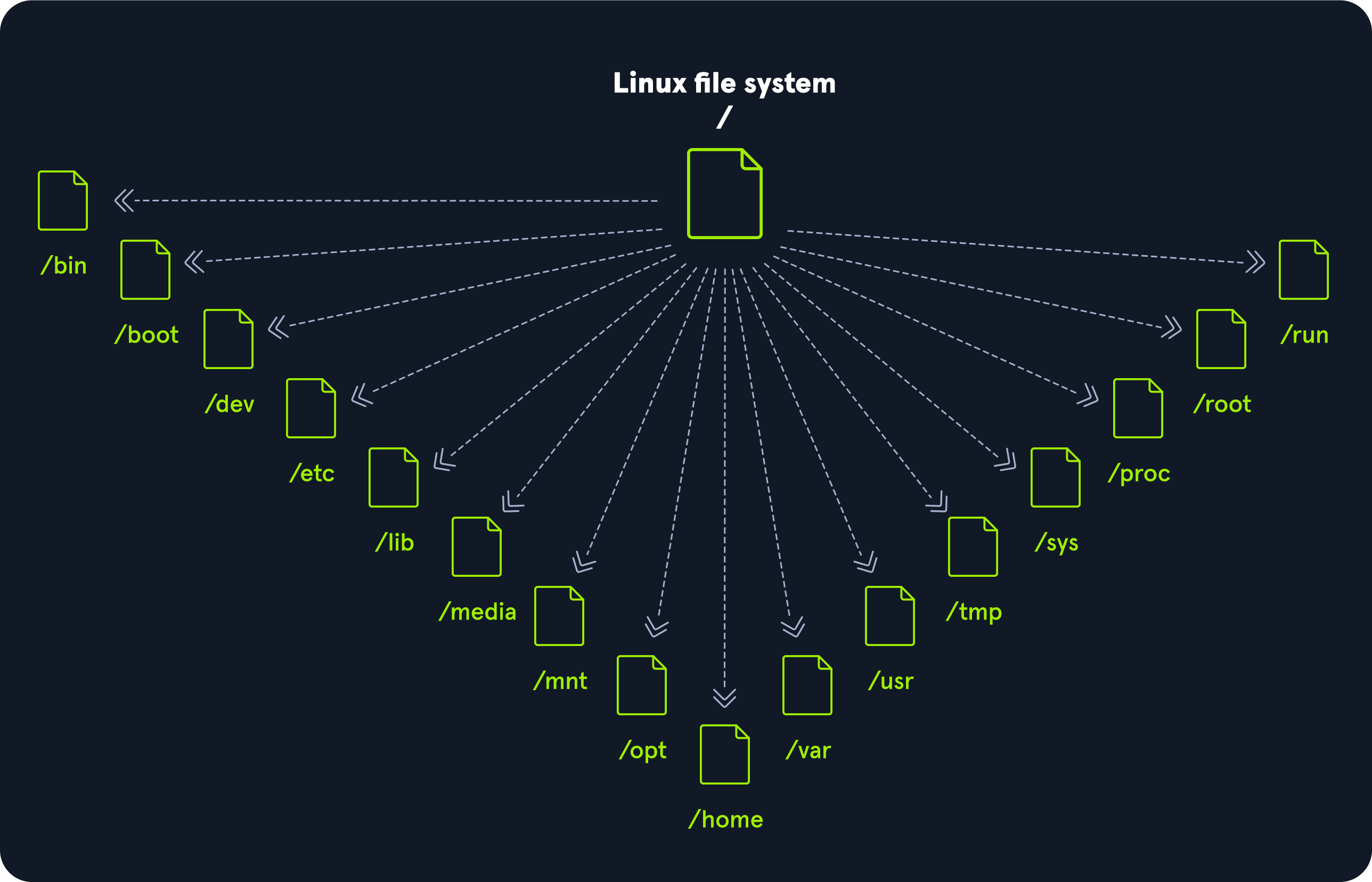
The OS is structured in a tree-like hierarchy and is documented in the Filesystem Standard (FHS). Linux is structured with the following standard top-level directories:
| Path | Description |
|---|---|
/ | The top-level directory is the root filesystem and contains all of the files required to boot the operating system before other filesystems are mounted, as well as the files required to boot the other filesystems. After boot, all of the other filesystems are mounted at standard mount points as subdirectories of the root. |
/bin | Contains essential command binaries. |
/boot | Consists of the static bootloader, kernel executable, and files required to boot the Linux OS. |
/dev | Contains device files to facilitate access to every hardware device attached to the system. |
/etc | Local system configuration files. Configuration files for installed applications may be saved here as well. |
/home | Each user on the system has a subdirectory here for storage. |
/lib | Shared library files that are required for system boot. |
/media | External removable media devices such as USB drives are mounted here. |
/mnt | Temporary mount point for regular filesystems. |
/opt | Optional files such as third-party tools can be saved here. |
/root | The home directory for the root user. |
/sbin | This directory contains executables used for system administration (binary system files). |
/tmp | The operating system and many programs use this directory to store temporary files. This directory is generally cleared upon system boot and may be deleted at other times without any warning. |
/usr | Contains executables, libraries, man files, etc. |
/var | This directory contains variable data files such as log files, email in-boxes, web application related files, cron files, and more. |
File system management:
Everything in Linux is considered as a file.
Linux supports many different file systems, including ext2, ext3, ext4, XFS, Btrfs, and NTFS.
ext2is an older file system with no journaling capabilities, which makes it less suited for modern systems but still useful in certain low-overhead scenarios (like USB drives).ext3andext4are more advanced, with journaling (which helps in recovering from crashes), and ext4 is the default choice for most modern Linux systems because it offers a balance of performance, reliability, and large file support.Btrfsis known for advanced features like snapshotting and built-in data integrity checks, making it ideal for complex storage setups.XFSexcels at handling large files and has high performance. It is best suited for environments with high I/O demandsNTFS, originally developed for Windows, is useful for compatibility when dealing with dual-boot systems or external drives that need to work on both Linux and Windows systems.
Inodes
This structure consists of several components, the most critical being inodes.
Inodes are data structures that store metadata about each file and directory, including permissions, ownership, size, and timestamps. Inodes do not store the file’s actual data or name, but they contain pointers to the blocks where the file’s data is stored on the disk.
The inode table is a collection of these inodes, essentially acting as a database that the Linux kernel uses to track every file and directory on the system.
Analogy:
Linux file-system can be considered as a library, where the inodes are index cards in the library's catalog system (inode table). Each card contains detailed information about a book (file) its title, author, location, and other details but not the actual book. The inode table is the entire catalog that helps the library (operating system) quickly find and manage the books (files).
In Linux, files can be stored in one of several key types:
| Regular files | Regular files are the most common type and typically consist of text data (such as ASCII) and/or binary data (such as images, audio, or executables). They reside in various directories throughout the file system, not just in the root directory. The root directory (/) is simply the top of the hierarchical directory tree, and files can exist in any directory within that structure. |
|---|---|
| Directories | Directories are special types of files that act as containers for other files (both regular files and other directories). When a file is stored in a directory, that directory is referred to as the file’s parent directory. Directories help organize files within the Linux file system, allowing for an efficient way to manage collections of files. |
| Symbolic links | Linux also supports symbolic links (symlinks), which act as shortcuts or references to other files or directories. Symbolic links allow quick access to files located in different parts of the file system without duplicating the file itself. Symlinks can be used to streamline access or organize complex directory structures by pointing to important files across various locations. |
sosoBoy@htb[/htb]$ ls -il

total 0 10678872 -rw-r--r-- 1 cry0l1t3 htb 234123 Feb 14 19:30 myscript.py 10678869 -rw-r--r-- 1 cry0l1t3 htb 43230 Feb 14 11:52 notes.txt
Disks & Drives
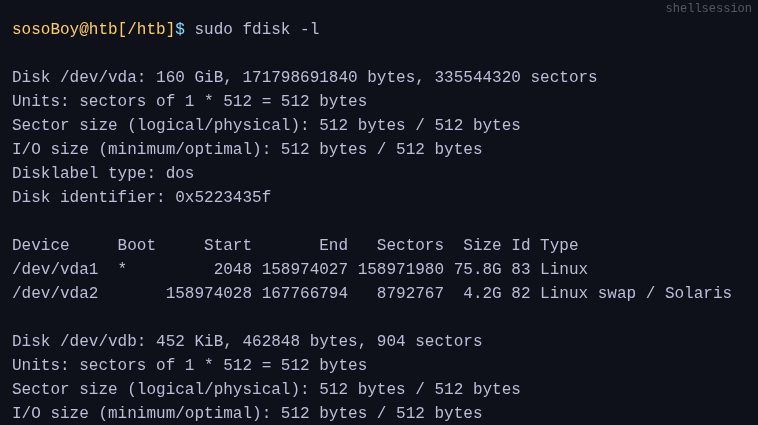
The main tool for disk management on Linux is the fdisk, which allows us to create, delete, and manage partitions on a drive.
Partitioning a drive on Linux involves dividing the physical storage space into separate, logical sections. Each partition can then be formatted with a specific file system, such as ext4, NTFS, or FAT32, and can be mounted as a separate file system.
Partitioning tools:
fdisk, gpart, GParted
Mounting
Each logical partition or storage drive must be assigned to a specific directory in the file system.
#mount
This process is known as mounting. Mounting involves linking a drive or partition to a directory, making its contents accessible within the overall file system hierarchy. Once a drive is mounted to a directory (also called a mount point), it can be accessed and used like any other directory on the system.
The mount command is commonly used to manually mount file systems on Linux. However, if you want certain file systems or partitions to be automatically mounted when the system boots, you can define them in the /etc/fstab file. This file lists the file systems and their associated mount points, along with options like read/write permissions and file system types, ensuring that specific drives or partitions are available upon startup without needing manual intervention.
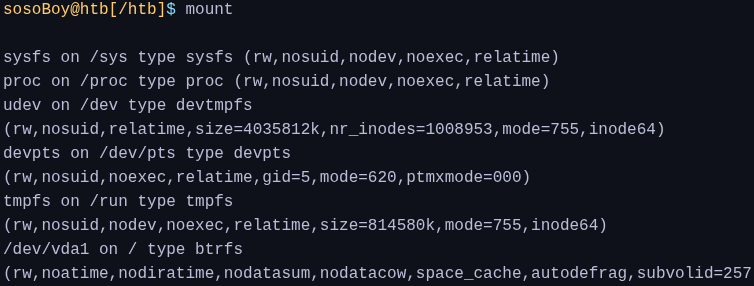
the mount command without any arguments will show a list of all the currently mounted file systems, including the device name, file system type, mount point, and options.
Mount a USB driver
To mount a file system, we can use the mount command followed by the device name and the mount point. For example, to mount a USB drive with the device name /dev/sdb1 to the directory /mnt/usb.
sosoBoy@htb[/htb]$ sudo mount /dev/sdb1 /mnt/usb
sosoBoy@htb[/htb]$ cd /mnt/usb && ls -l

total 32
drwxr-xr-x 1 root root 18 Oct 14 2021 'Account Takeover'
drwxr-xr-x 1 root root 18 Oct 14 2021 'API Key Leaks'
drwxr-xr-x 1 root root 18 Oct 14 2021 'AWS Amazon Bucket S3'
drwxr-xr-x 1 root root 34 Oct 14 2021 'Command Injection'
drwxr-xr-x 1 root root 18 Oct 14 2021 'CORS Misconfiguration'
drwxr-xr-x 1 root root 52 Oct 14 2021 'CRLF Injection'
drwxr-xr-x 1 root root 30 Oct 14 2021 'CSRF Injection'
drwxr-xr-x 1 root root 18 Oct 14 2021 'CSV Injection'
drwxr-xr-x 1 root root 1166 Oct 14 2021 'CVE Exploits' ...SNIP...
Unmount
sosoBoy@htb[/htb]$ sudo umount /mnt/usb
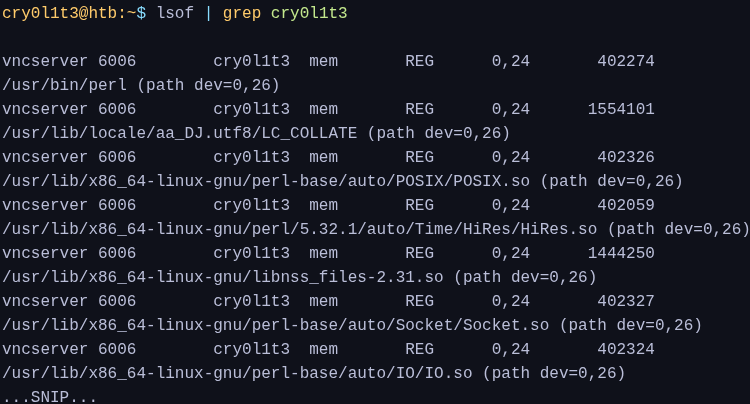
It is important to note that we must have sufficient permissions to unmount a file system. We also cannot unmount a file system that is in use by a running process. To ensure that there are no running processes that are using the file system, we can use the lsof command to list the open files on the file system.
lsof
#lsof
All mounted filesystems (whether listed in /etc/fstab or mounted manually) will be cleanly unmounted automatically during system shutdown by the OS. If we want to prevent a filesystem from mounting automatically at boot, we need to add the noauto option to its entry in the /etc/fstab file. This would look like, for example, the following:
Fstab File
/dev/sda1 / ext4 defaults 0 0 /dev/sda2 /home ext4 defaults 0 0 /dev/sdb1 /mnt/usb ext4 rw,noauto,user 0 0 192.168.1.100:/nfs /mnt/nfs nfs defaults 0 0
SWAP (Memory management)
Swap space is an essential part of memory management in Linux and plays a critical role in ensuring smooth system performance, especially when the available physical memory (RAM) is fully utilized. When the system runs out of physical memory, the kernel moves inactive pages of memory (data not immediately in use) to the swap space, freeing up RAM for active processes. This process is known as swapping.
Creating Swap Space
Swap space can be set up either during the installation of the operating system or added later using the mkswap and swapon commands.
mkswapis used to prepare a device or file to be used as swap space by creating a Linux swap areaswaponactivates the swap space, allowing the system to use it
Sizing and Managing Swap Space
The size of the swap space is not fixed and depends on your system's physical memory and intended usage. For example, a system with less RAM or running memory-intensive applications might need more swap space. However, modern systems with large amounts of RAM may require less or even no swap space, depending on specific use cases.
When setting up swap space, it’s important to allocate it on a dedicated partition or file, separate from the rest of the file system. This prevents fragmentation and ensures efficient use of the swap area when needed. Additionally, because sensitive data can be temporarily stored in swap space, it's recommended to encrypt the swap space to safeguard against potential data exposure.
Besides extending physical memory, swap space is also used for hibernation. Hibernation is a power-saving feature that saves the system’s state (including open applications and processes) to the swap space and powers off the system. When the system is powered back on, it restores its previous state from the swap space, resuming exactly where it left off.